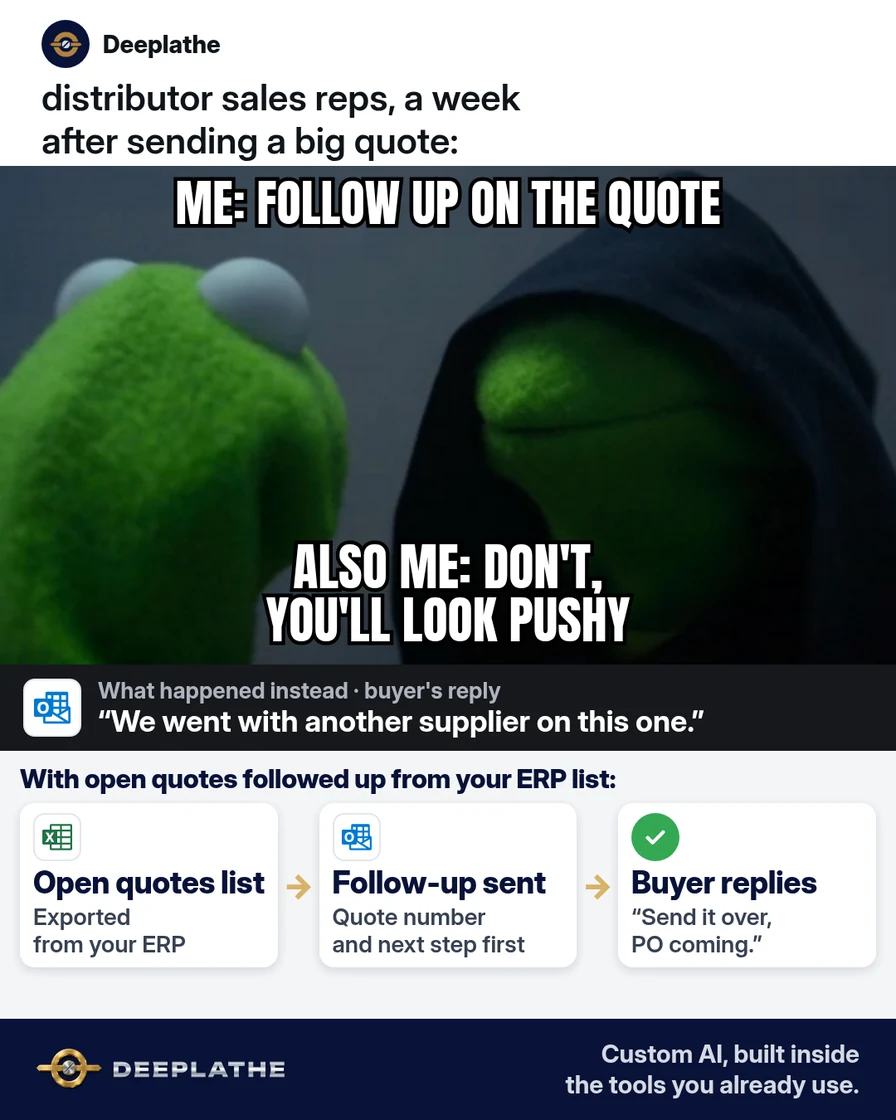
Part of: Quotes and leads you never followed up
Follow-ups
Quotation follow-up email: templates for industrial and MRO distributors
Outlook My Templates or Gmail templates, Schedule send written on day 0, and QuickBooks automatic reminders on emailed invoices.
The follow-up is three dated messages written when the quote is sent. The mailbox holds the delivery. QuickBooks holds the invoice reminder after the estimate becomes an emailed invoice.
The short answer
Store the body once (Outlook Message tab > My Templates, or Apps; or Gmail templates). On day 0, Schedule send for day 2, day 7 and day 14. New Outlook and Outlook on the web keep the item in Drafts. Classic Delay Delivery keeps it in the Outbox, and Outlook must be running. After acceptance, create the invoice from the estimate. Gear > Account and settings > Sales > Reminders > Edit > Automatic invoice reminders. Emailed invoices only. QuickBooks Online Advanced uses Manage workflows.
Floor vote
What happens to a quote after it goes out?
One vote per device. Change it any time.
Loading votes…
Set it up once (10 minutes)
- Save the three bodies in the template store. Outlook: Message tab > My Templates (or Apps). Gmail: templates.
Day 2: quote number, items, the date pricing holds, one question on quantity.
Day 7: quote number, one useful option (pack size or split shipment), one question on holding the quote as written.
Day 14: quote number, a keep-open or close choice.
- On the quote's thread, insert the template, fill the tokens, and schedule three deliveries: day 2, day 7, day 14. Gmail: the arrow beside Send > Schedule send. New Outlook and Outlook on the web: the same Schedule send control. The item remains in Drafts until the delivery time.
- Classic Outlook: Delay Delivery, one time per message. The item remains in the Outbox. Outlook must be running at that time.
- On acceptance, create the QuickBooks Online invoice from the estimate. Reminders path: Gear > Account and settings > Sales > Reminders > Edit > Automatic invoice reminders. QuickBooks Online Advanced: Manage workflows.
Written on day 0
- Day 0Schedule all threeTemplates filled when the quote goes out.
- Day 2QuantityScheduled that morning.
- Day 7One optionScheduled that morning.
- Day 14Keep or closeScheduled that morning.
What runs by itself afterwards
The three scheduled messages leave at the times set on day 0. No second writing session. Emailed invoices then receive the automatic reminders configured under Sales > Reminders.
Limits. A buyer reply before day 7 or day 14 means cancel the items still waiting (Drafts in new Outlook and on the web; Outbox in classic). Classic delivery happens only while Outlook is running. New Outlook Schedule send is unavailable for IMAP or POP accounts. Gmail delivers in the time zone used at schedule time, can run a few minutes late, and caps an account at 100 scheduled messages. Automatic invoice reminders apply only to invoices you have emailed. The day-0 schedule does not create the invoice. You create the invoice from the estimate when the quote is accepted.
Field check
Field check
Three questions. Honest answers. No score sent anywhere but this page.
01 / 03
When do you write the day 2, day 7 and day 14 notes?
FAQ
When are the three bodies written?
Day 0, on the quote thread, then scheduled for day 2, day 7 and day 14.
Outlook holding folder
New Outlook and Outlook on the web: Drafts, sent at the scheduled time. Classic Delay Delivery: Outbox, and Outlook must be running.
Gmail controls
Templates for the stored body. Schedule send (arrow beside Send) for the three times.
QuickBooks path
Invoice created from the estimate. Then Gear > Account and settings > Sales > Reminders > Edit > Automatic invoice reminders, for emailed invoices. QuickBooks Online Advanced uses Manage workflows.
Keep these
- Template store once: My Templates (or Apps), or Gmail templates.
- Three Schedule send times, set on day 0.
- Drafts for new Outlook and the web. Outbox plus a running Outlook for classic Delay Delivery.
- Invoice from the estimate, then automatic reminders on emailed invoices only.
Deeplathe can leave that day-0 schedule in the mailbox you already use.
Sources
- Microsoft: Delay or schedule sending email messages in Outlook
- Gmail Help: Schedule emails to send
- QuickBooks: Send invoice reminders automatically or manually
Related reading
Keep these
The working rules
Message tab > My Templates (or Apps), or Gmail templates. Schedule send on day 0 for day 2, day 7 and day 14. New Outlook and the web hold the message in Drafts. Classic Delay Delivery holds it in the Outbox and Outlook must be running. Then Gear > Account and settings > Sales > Reminders > Edit > Automatic invoice reminders, emailed invoices only. QuickBooks Online Advanced uses Manage workflows.